Key takeaways
- Note the obstruction result in the Starlink app first. Tests with more than 1% obstruction are kept in our raw data but don't count toward county medians.
- Pause big downloads and streams, and test near the router on 5 GHz Wi-Fi or a wired device.
- Use the Starlink app's Device to Internet test (or Ookla or Fast.com). The app's Device to Router test tells you whether Wi-Fi is the bottleneck.
- Run three tests a few minutes apart and report the middle one. That's our recommendation; reporting your best test biases results upward.
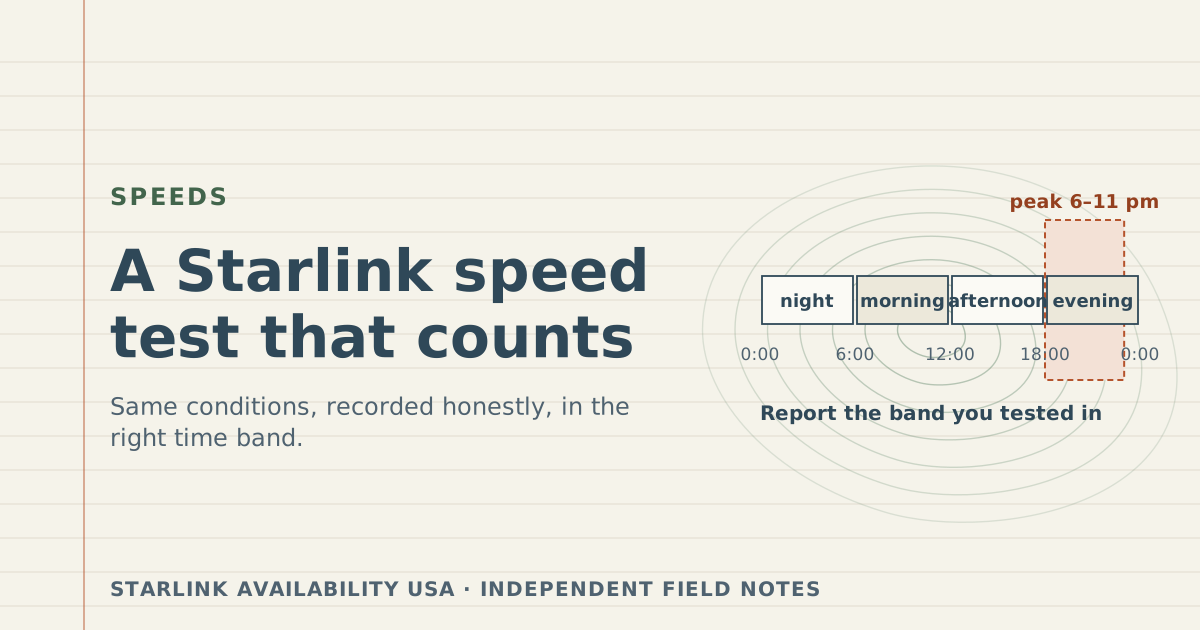
- Record the time band. Starlink says peak hours are typically 6–11 pm local, so an evening test should be compared with other evening tests.
On this page
- The checklist
- Why the middle of three?
- Time of day: report the band you tested in
- Comparing your result with your plan
- How your test is used in county numbers
- Common mistakes
- If your number is low: Starlink’s own sequence
- Testing a Mini or a Roam plan
- Testing more than once
- What we don’t know
- What to do next
- Questions people ask
- Sources
To run a Starlink speed test that counts, check the app’s obstruction result first, pause anything heavy on your network, test from a device near the router (on 5 GHz Wi-Fi or wired), run the test three times a few minutes apart, and keep the middle result. Then write down the download, upload and latency, the time band you tested in, the tool, and the obstruction percentage. That gives a number that measures your Starlink connection rather than your Wi-Fi or your household, and that can be compared with other people’s.
The steps come from Starlink’s own troubleshooting advice, plus two rules of ours that make tests comparable: report the middle of three, and label the time band. Both are explained below.
The checklist
Before you test
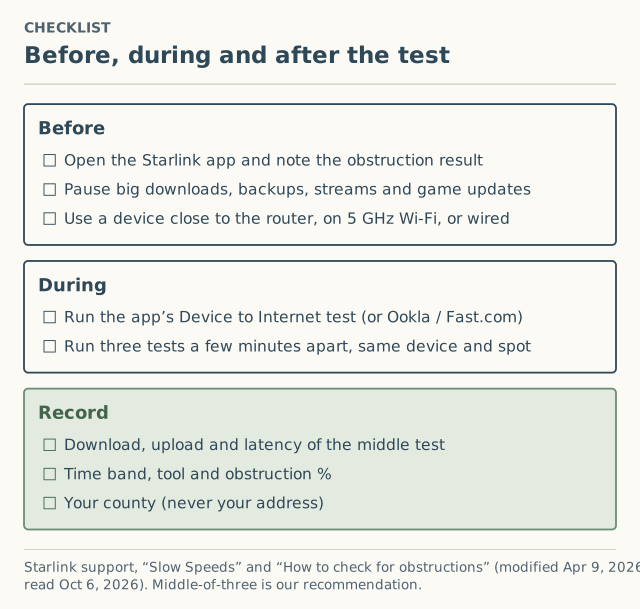
- Check obstructions. Open the Starlink app and note the obstruction result. Starlink: objects “such as a tree branch, pole or roof” that block the dish’s view “may cause service interruptions.” If you haven’t scanned before, the app’s “Check for Obstructions” tool walks you through it. Fixing obstructions is outside what we cover.
- Pause heavy use. Stop large downloads, cloud backups, game updates and video streams on every device. Otherwise you’re measuring what’s left over.
- Get close to the router. Starlink’s advice: “Confirm your device has good signal strength and is using the 5Ghz band.” A wired device is better still. Starlink also suggests removing third-party hardware when troubleshooting.
Run the test
-
Use the app’s Device to Internet test, or a test site. Starlink describes two app tests:
- Device to Internet “measures end-to-end speeds from your device running the Starlink app and the internet. This test uses a similar methodology to other speed test providers.”
- Device to Router “measures the connection quality between your device and your Starlink router. If this number is lower than your router speed test, you may be bottlenecked by your WiFi connection.”
Speedtest by Ookla and Fast.com work too. Pick one and stick with it, and report which you used.
-
Run it three times, a few minutes apart, same device, same spot.
Record
- Keep the middle result of the three: the one whose download speed is neither highest nor lowest. Note its download (Mbps), upload (Mbps) and latency (ms).
- Note the time band (next section), the tool, and the obstruction percentage.
- Note your county, never your address.
Why the middle of three?
A single test can land on a random dip or spike. Three tests show you the spread, and the middle one is a fair “typical.” Reporting the best of three, which is tempting, biases everything upward: if everyone reports their best, the county median describes nobody’s normal evening. This is our recommendation for reports to this site, not a Starlink rule.
| Test | Download | Upload | Latency |
|---|---|---|---|
| 1 (hypothetical) | 112 Mbps | 18 Mbps | 41 ms |
| 2 | 87 Mbps | 15 Mbps | 48 ms |
| 3 | 96 Mbps | 16 Mbps | 44 ms |
| Report this one | 96 Mbps | 16 Mbps | 44 ms |
Made-up numbers. Report one test’s three numbers together (test 3), rather than mixing the best download from one test with the best upload from another.
Time of day: report the band you tested in
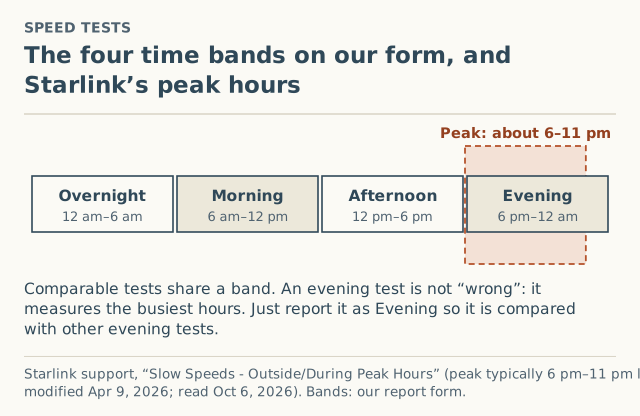
Starlink: peak hours are “the times during the day when many Starlink users are trying to use their service at the same time (typically between 6pm and 11pm local time),” when “you may experience varying or slower speeds.”
An evening test isn’t wrong. It measures the hours many people care about most. It just shouldn’t be compared with a Sunday-morning test. Our form asks which of four bands you tested in:
| Band | Hours (local) | Notes |
|---|---|---|
| Overnight | midnight–6 am | Usually the quietest |
| Morning | 6 am–noon | |
| Afternoon | noon–6 pm | |
| Evening | 6 pm–midnight | Contains Starlink’s stated 6–11 pm peak |
If you want the full picture, run the three-test routine once in the morning and once in the evening, and report both. That’s exactly the comparison our time-of-day page is built to show once there’s enough data.
Comparing your result with your plan
Starlink’s typical ranges for US Residential plans (verified October 5, 2026):
| Plan | Typical download | Typical upload |
|---|---|---|
| Residential Max | up to 400+ Mbps | 20–40 Mbps |
| Residential 200 Mbps (select areas) | 80–200 Mbps, capped at 200 | 15–35 Mbps |
| Residential 100 Mbps (select areas) | capped at 100 Mbps | 15–35 Mbps |
A middle-of-three result well below your plan’s range, outside peak hours, with no obstruction and a good Device to Router result, is the case where Starlink’s slow-speeds article suggests checking the app for alerts and power cycling. Starlink also lists making sure the dish is “being used in the correct service location listed on your account,” since using it elsewhere “may result in loss of connectivity or reduced performance.”
How your test is used in county numbers
When you submit a test, it goes through review like every report, then:
- It counts toward your county’s speed cell only if the obstruction percentage is 1% or less. Tests above 1% are kept in the raw data and excluded from medians, because a blocked dish and a congested area look the same on a speed test.
- A county shows speeds only at 20 or more tests in the last 6 months. Below that it shows “not enough reports yet.”
- Published cells show the median with p25 and p75. See how to read them.
The form limits values to sensible ranges (download up to 1,000 Mbps, upload up to 300 Mbps, latency 1 to 2,000 ms) to catch typos. As of October 5, 2026, no county had reached 20 tests.
Common mistakes
- Testing during a family movie night. You’re measuring leftovers.
- Testing from the far end of the house on 2.4 GHz. Run Device to Router to see if Wi-Fi is the limit.
- Reporting your best result. Report the middle of three.
- Leaving the time band blank or wrong. It’s what makes your test comparable.
- Skipping the obstruction percentage. Without it, we can’t tell a blocked dish from a busy network.
- Mixing numbers from different runs. Keep one test’s download, upload and latency together.
If your number is low: Starlink’s own sequence
Starlink’s slow-speeds article gives a troubleshooting order for speeds that are low “consistently throughout the day.” In short:
- Check the app’s home screen for alerts about outages, obstructions or hardware issues.
- Make sure the dish is at the service location listed on your account.
- Priority plans only: check whether you’ve hit your priority data limit.
- Check that nothing blocks the dish’s view, including heavy dirt, debris or a covering on its face.
- Power cycle the Starlink and router by unplugging and re-plugging the AC cable.
- Remove third-party hardware and test off-peak with the app and router, using both Device to Internet and Device to Router.
If speeds are only slow in the evening, Starlink’s explanation is peak-hour demand, not your setup. Record those tests with the Evening band; they’re real data about your county.
Testing a Mini or a Roam plan
You can report tests from a Mini or a Roam plan too: the form has kit and plan fields. Two cautions: Starlink publishes no speed range for Roam plans, so there’s no plan figure to compare with, and the county you report should be where you ran the test.
Testing more than once
One good report is useful. Several over time are more useful, as long as each is a separate, honest test. If you test regularly, run the three-test routine on different days and in different bands, and report each middle result with its own month and time band. Don’t resubmit the same test: identical reports received on the same day count once, and repeating one result doesn’t make it more true.
What we don’t know
- How different tools compare on Starlink. Starlink says its Device to Internet test is similar in method to other providers. We haven’t run paired comparisons and don’t publish any. Recording the tool lets us check once data exists.
- What’s normal in your county. No county has a published speed cell yet. Why speeds vary between places is covered in causes ranked by evidence.
What to do next
- Run the three-test routine now, and again in the evening if you can.
- Submit it. It takes about two minutes, needs no account, and asks for your county only. What happens after you submit.
- Check speeds by county as cells start publishing.
Questions people ask
How do I test my Starlink speed?
Why is my Starlink speed test slow at night?
Should I use the Starlink app or Speedtest?
Does Wi-Fi affect my Starlink speed test?
Do obstructions affect speed tests?
Which result should I report, the best or the average?
Sources
- Starlink support: Slow Speeds - Outside/During Peak Hours (modified Apr 9, 2026) (retrieved Oct 6, 2026)
- Starlink support: How to check for obstructions (modified Apr 9, 2026) (retrieved Oct 6, 2026)
- Starlink support: What are the Residential plans? (modified Apr 8, 2026) (retrieved Oct 6, 2026)
- Starlink support: How do I change my service address? (modified Apr 9, 2026) (retrieved Oct 6, 2026)
Related guides
Speeds
Reading p25, median and p75 on a Starlink speed page
What p25, median and p75 mean on a Starlink speed result, why we show them instead of an average, and how to compare them with Starlink's plan speed ranges.
Speeds
Why Starlink speed varies by location: causes ranked by evidence
Why Starlink is faster in one place than another: peak demand, local capacity, plan caps, obstructions, Wi-Fi and location, each with how well it's documented.
Method
How the Starlink Availability USA dataset is built, start to finish
Every step from an anonymous Starlink surcharge or speed report to a published county number: form checks, outlier holds, human review, thresholds and the CSV.